Appearance
Setup
This is the one setup path: clone Cicero, run the setup wizard, start it, and talk. The wizard sets up layer 1, Cicero itself, plus one front desk and one agent. Your own office of employees comes later.
Prefer to have an AI agent do it? Point Claude Code, Codex or any other coding agent at INSTALL.md. It asks you two questions and drives the same wizard headlessly (see Set it up with an AI agent).
Before you start
- Bun, the runtime (
curl -fsSL https://bun.sh/install | bash). - uv, which installs the Python speech engines (
curl -LsSf https://astral.sh/uv/install.sh | sh). - ffmpeg and OpenSSL (
sudo apt install ffmpeg openssl, or brew/scoop). OpenSSL creates the web page's HTTPS certificate once. - A local model runtime for the front desk and the helper, with a model loaded: llama.cpp behind llama-swap (
:8080), Ollama (:11434) or LM Studio (:1234). The wizard tells you which model fits your machine and how to pull it. - A coding agent, if you want one, installed and logged in: Claude Code, Codex, Gemini, Qwen, or an ACP agent such as Hermes or
codex-acp. See Choosing a brain.
Linux with an NVIDIA GPU and macOS 14+ on Apple Silicon are the supported wizard paths. CPU-only Linux and Windows run the same wizard with their existing defaults.
Start the wizard
bash
git clone https://github.com/5uck1ess/cicero && cd cicero
bun install
bun run src/index.ts setup     # or: bun link, then cicero setup
It prints a URL with a one-time token; open it in a browser. Nothing is written until you save, and it only writes when no config exists yet.
--lanserves the page over HTTPS to other devices on your network, for a headless box. Accept the self-signed certificate once. If the box runs a firewall, pick a fixed--portand allow it from your LAN first (with ufw:sudo ufw allow from 192.168.1.0/24 to any port <port> proto tcp, deleted again when setup is done).--home <dir>writes to another directory instead of~/.cicero, so you can try setup without touching your real config.cicero startreads only the default home, so the hand-off shows the copy command.--port <n>picks the port (default: a free port).
The wizard walks these steps in order. Each box says what the step writes into ~/.cicero/config.yaml:
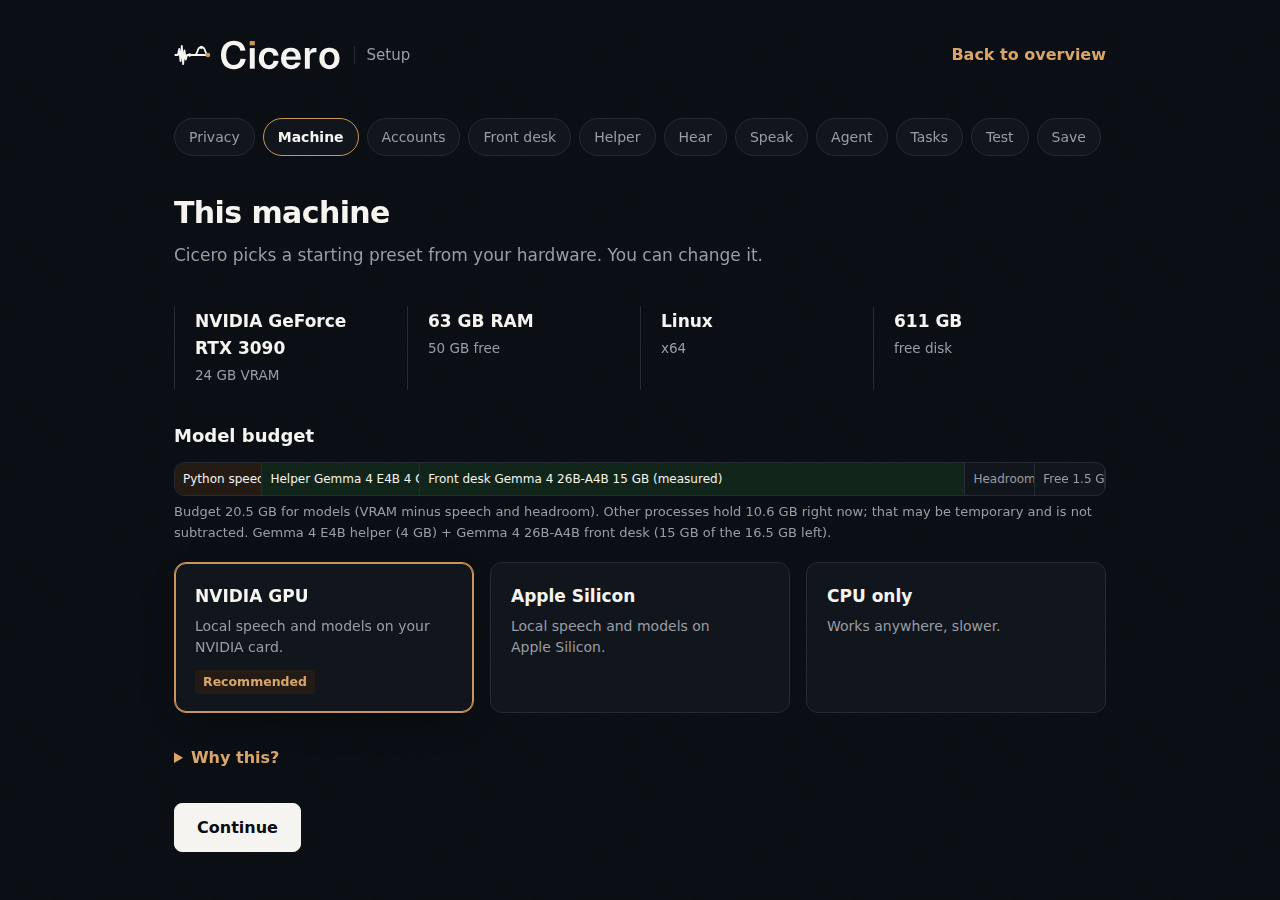
Each step is one question with a few option cards. A card says whether the software is running, installed or not found, and the one that fits your machine is marked Recommended. If you pick something that is missing, the step shows how to install it and a Check again button. Why this? opens the longer explanation.
Privacy
What may leave this machine?
- Nothing, unless I allow it (the default). The front desk, the helper and speech run here. A cloud coding agent, a hosted task board, or a cloud speech service is allowed one item at a time, with a sentence saying what leaves.
- Conversation may use cloud models. The front desk and agents may be cloud services; the helper still runs here. Cloud speech, Telegram and task boards still need their own allowance.
Picking a cloud recognizer or voice on the Hear or Speak step (Soniox, Deepgram, OpenAI, Groq, Mistral, ElevenLabs) adds the speech allowance for you. Those steps take the provider's API key in a password field, or use its environment variable when that is already set, and offer a Test key button.
Writes privacy: { mode: local | cloud, allow: [...] }. This is a declared policy, not a firewall: the wizard enforces it when you choose, and cicero doctor warns when the config drifts from it. What each mode means day to day is in Using Cicero.
Machine
Detects OS, CPU, RAM, free disk, Apple Silicon and NVIDIA VRAM, and works out the model budget: how much memory the front desk and helper may use once speech and headroom are set aside. It recommends a starting preset (NVIDIA GPU, Apple Silicon or CPU only). Writes deployment: local-cuda | local-mlx | local-cpu.
Accounts
Shows which login or API key each agent will most likely use, and who bills it. An API key in your environment can silently override a subscription login (claude prefers ANTHROPIC_API_KEY, for example). Ticking Use my subscription removes that key from the agent's environment only; the Agent step writes it as unset_env. Logins and keys are reported as found or not found, never read or stored. This step writes nothing itself.
Front desk
What answers when you talk:
- A model (fast, no tools). It answers in about a second and hands coding work to your agent when you say "think hard". The wizard lists the models loaded in llama-swap/llama.cpp, Ollama and LM Studio and recommends one that fits the budget. With cloud privacy it can also be a cloud model (the key stays in your environment, never in the config). Writes
brain. - An agent (slower, uses tools). The agent you pick on the Agent step answers everything. Writes nothing here.
Helper
A small local model that shortens long spoken replies (say "details" for the rest) and summarizes old conversation history so long sessions keep their context. In local privacy mode it is required. Writes web_voice.tldr.summarizer_url/summarizer_model, llm, and brain.history_compaction.enabled when Compress long conversations is ticked. With no helper and a cloud front desk, llm points at the front desk's model instead.
If a runtime isn't running, the step shows how to get the recommended model, for example ollama pull gemma4:e4b-it-qat, or a llama-swap entry with the settings the budget assumes (64k context, q8 KV cache).
Hear
Speech-to-text. The hardware tier picks the starting engine, and each option shows whether its environment is installed and its port is up. Writes stt.
Speak
Text-to-speech. Same checks as Hear, plus a Play sample button that speaks one sentence through the running engine (it never starts one). Writes tts. Voice cloning comes after setup: see Voice cloning.
Speech choices on a CUDA box
On Linux with a detected NVIDIA GPU, Hear offers Nemotron (audio.cpp) and Speak offers Pocket TTS (audio.cpp). Both use the same CUDA server on port 8092. The Python Pocket TTS (Python) choice remains available as a separate sidecar. The page detects the audio.cpp binary, the selected model directory, port 8092, and whether a reachable server lists that model at /v1/models. It recommends audio.cpp for a local-cuda setup when the binary and model directory exist. If a server is running, it must list the model. When those conditions fail, the page keeps the usual faster-whisper or Kokoro recommendation.
Build audio.cpp with scripts/provision-audiocpp.sh. This script builds the CUDA server but does not download model weights. Place Nemotron weights in vendor/audio.cpp/models/nemotron-3.5-asr-streaming-0.6b and Pocket TTS weights in vendor/audio.cpp/models/pocket-tts manually. The repository has no confirmed automated download path for these two model directories. See the audio.cpp voice setup for the documented Pocket TTS path; verify the Nemotron weights and layout with the audio.cpp project before starting the server.
Saving either audio.cpp choice writes its model ID and port into ~/.cicero/config.yaml and creates or extends servers/audiocpp_server.local.json in the checkout. Setup adds only the selected model entries and keeps existing entries and other JSON keys. The server JSON is machine local and ignored by Git. If that file already uses a different port or model entry with the same ID, inspect and reconcile it manually before starting Cicero; setup preserves existing values.
The optional STT live streaming checkbox adds stt.streaming: true and writes Nemotron's model entry with "mode": "streaming". When Nemotron already has an entry, setup updates its mode and preserves its other keys. Restart audio.cpp after changing the model mode. Live streaming affects browser voice only.
Agent
The coding agent. What it does depends on the front desk:
- Model front desk: the agent is an escalation agent. The front desk hands it a turn when you say "think hard" (see Using Cicero). This needs an ACP agent (Hermes,
codex-acp,claude-acp,grok-acp, or your own ACP command), or none. Writesbrain.escalate. - Agent front desk: the agent answers everything: Claude Code, Codex, Gemini, Qwen, an ACP agent, or a model API. Writes
brain.
In local privacy mode, a cloud agent needs Allow this agent to use the cloud ticked, which adds agent to privacy.allow. ACP agents are checked on PATH and stay "unverified until first call".
Tasks
Optional. Detects hermes, multica or paperclipai and probes the board once. A board holds your task text, so it needs Allow task text to go to this board ticked in either privacy mode, which adds board to privacy.allow. Writes notify.kanban. Cicero only watches the board; the board owns the tasks.
Test
Tries each running part once. Each probe has its own Run button, a deadline and a Cancel button:
- Hear: transcribes a bundled clip and compares the words.
- Front desk: one short answer from a model front desk. An agent is never run here; it shows as installed and is tested on your first call.
- Helper: one summary.
- Speak: use Play sample on the Speak step; the browser plays it.
- Memory: on NVIDIA, measures what each engine and model really uses with
nvidia-smiand shows it in the Memory row, next to the Machine bar's fit-table values. Mac memory is not measured, and its fit is labeled an estimate.
A later choice clears the results. Failures never block saving.
Check
Runs the same checks as cicero doctor against a private temporary copy of the draft. Config errors block saving. Engines that are not installed or running yet are listed with the command that fixes them, and you confirm before saving.
Save
Writes a private, annotated ~/.cicero/config.yaml with a comment on every key, including a stable random web_voice.token. It only writes when no config exists. An invalid existing config is backed up only if you click Back up old config and start fresh.
Hand-off
Shows the command to start Cicero and how to pair a phone. Finish and close setup stops the setup page; it does not start the daemon.
What the wizard writes for a Claude Code setup
For cloud privacy, Claude Code as the front desk, a local Gemma 4 E4B helper on llama-swap, faster-whisper and Kokoro, the saved file comes down to this (comments and the random web_voice.token left out; with Compress long conversations ticked, brain also gets history_compaction: { enabled: true }):
yaml
deployment: local-cuda
headless: true
privacy: { mode: cloud }
brain: { backend: claude-code, mode: subprocess }
web_voice:
  enabled: true
  tldr: { summarizer_url: http://127.0.0.1:8080/v1, summarizer_model: gemma4-e4b }
llm: { backend: openai, baseUrl: http://127.0.0.1:8080/v1, model: gemma4-e4b }
stt: { backend: faster-whisper }
tts: { backend: kokoro }
Every key is documented in config.yaml.example, the reference for every option. You don't need to copy it.
Start and pair
bash
cicero doctor   # re-checks everything and prints fixes
cicero start    # or: bun run src/index.ts start
# → 🎙️  Web voice server on https://0.0.0.0:8090 (token required)
To use Cicero from your phone, run this with the daemon running:
bash
cicero pairThe command ensures web_voice.token is a stable random credential, prints the phone URL, and renders the same URL as a terminal QR code. If it creates or replaces the token, restart the daemon once and re-run cicero pair. The QR contains the live credential; use cicero pair --no-token-in-qr to scan only the address and type the separately printed token on the phone.
When no web_voice.tunnel block is configured, pair prints the exact one-line block to add but does not make that second config change. With a daemon-owned tunnel, the published tunnel URL wins over the LAN URL. Cloudflared quick-tunnel URLs change on every daemon run, so re-run pair after each restart; Tailscale hostnames are stable. The manual URL and certificate flow below remains available.
Open https://<box-ip>:8090/?token=<token>, accept the self-signed certificate once, and click Start conversation (the page loads with it off). Hold SPACE or the orb and say "What can you help me with?" You should hear a reply. Do this one real turn before treating a setup as ready: cicero doctor cannot prove that an agent's login works. Page controls, hands-free mode and the PWA are in the web voice guide; what to say next is in Using Cicero.
If something is off:
- The browser warns about the certificate. Expected: Cicero makes a self-signed HTTPS certificate on first start, because browsers only give the microphone to HTTPS pages. Accept it once per device.
- I talk and nothing happens. Click Start conversation first, then hold SPACE or the orb while speaking. Then check the browser's microphone permission, then
cicero doctor. doctoris green but turns fail. Run the agent's own CLI once by hand to confirm it is logged in, then try a real turn again.
Manual steps the wizard doesn't do yet
The wizard has no Channels or Install step yet, so these stay manual.
Install the speech engines you chose. Hear and Speak show the exact command for your choice, and
cicero doctorrepeats it. The common ones:bashuv venv .venv-stt --python 3.10 && uv pip install --python .venv-stt -r requirements/faster-whisper.txt uv venv .venv-kokoro --python 3.11 && uv pip install --python .venv-kokoro -r requirements/kokoro.txt uv venv .venv-pocket --python 3.11 && uv pip install --python .venv-pocket -r requirements/pocket-tts.txtaudio.cpp model weights are downloaded by hand (see "Speech choices on a CUDA box" above).
Telegram (messages and calls): see Notifications and the call sidecar guide. In local privacy mode, add
telegramtoprivacy.alloworcicero doctorwarns.
Set it up with an AI agent
The wizard's detection, choices and checks also run headlessly, for an AI agent working for you. INSTALL.md is the agent's script; the commands are:
bash
bun run src/index.ts setup --plan --json --privacy local --agent codex-acp > plan.json
bun run src/index.ts setup --apply answers.json      # answers.json = plan.recommended, edited
bun run src/index.ts setup --test --json             # once the engines are running
bun run src/index.ts doctor --json--planreads only. It printsdetected(each step's detection),recommended(an answers file ready to apply),reasons(one line per choice) andblocked(steps it could not fill, with the fix). Credentials show only as found or not found.- The answers file is
{ version: 1, privacy: {…}, steps: { <step>: <choice> } }, one entry per choice step (privacy,system,accounts,frontdesk,helper,stt,tts,brain,board), each exactly what the page posts. --applyre-runs detection and parses every choice through the same code and probes as the page, runs the same Check, and writes through the same rules: it never overwrites an existing config. Engines that aren't ready yet need--acknowledge-not-ready; an invalid existing config is backed up only with--backup-invalid.--testruns Test's probes against running engines and reports Speak as skipped (no browser).
Platform variants
The wizard is the same everywhere; only the prerequisites differ.
macOS 14+ (Apple Silicon)
bash
brew install uv sox openssl ffmpeg
bun install
bun run src/index.ts setup
The Machine step recommends the MLX stack (local-mlx). The current MLX dependency floors need macOS 14 or newer. For terminal tab integration, use a terminal with remote control (Kitty, tmux or WezTerm); terminal: none runs headless. See terminal adapters.
Windows (CUDA)
bash
powershell -c "irm bun.sh/install.ps1 | iex"      # Bun
scoop install uv sox ffmpeg tmux openssl          # uv, audio tools, tmux, OpenSSL
bun install
bun run src/index.ts setup
The venv commands above work the same on Windows. OpenSSL is needed only to create the first web-voice certificate; cicero doctor reports it when it is missing.
Optional macOS MLX stack and native helper
The existing MLX and native-hotkey recipe is an alternative to the reference speech-server installation above:
bash
bun install
brew install sox openssl ffmpeg
uv venv .venv --python 3.12
uv pip install --python .venv -r requirements/mlx.txt --prerelease=allow

bun run build:hotkey    # optional — macOS Ctrl+Shift+Space helper
bun link

bun run src/index.ts doctor
cicero start --tts
Run at boot
Ship it as a systemd user service (no Docker needed; the daemon supervises its own model servers):
Set a stable web_voice.token before enabling the service. Systemd retains service stdout in the journal, including the one-run token printed when that setting is omitted.
bash
cp deploy/cicero.service ~/.config/systemd/user/   # edit WorkingDirectory first
systemctl --user enable --now cicero
loginctl enable-linger $USER                        # keep it alive when logged out
Optional VibeVoice, Smart-Turn, and speech-emotion stacks
VibeVoice's published vibevoice-api==0.0.1 wheel is not standalone: its server imports the separate vibevoice model package, but the wheel does not declare or include it. Cicero therefore pins the upstream VibeVoice and VibeVoice-API source snapshots in requirements/vibevoice-sources.txt, along with the server's undeclared direct imports. Keep that stack in its own Python 3.11 environment (Git is required so uv can fetch the pinned snapshots):
bash
uv venv .venv-vibevoice --python 3.11
uv pip install --python .venv-vibevoice -r requirements/vibevoice.txt
No manual checkout or separately started server is needed: the manifest owns the source revisions, and Cicero launches python -m vibevoice_api.server. The selected model weights download on first launch. See voice cloning for the backend config and reference-clip workflow.
Smart-Turn has a dedicated, small Python 3.11 environment on every platform. This avoids changing the MLX or faster-whisper dependency graph:
bash
uv venv .venv-turn --python 3.11
uv pip install --python .venv-turn -r requirements/turn.txt
Existing installations that previously put Smart-Turn in .venv-stt or .venv continue to launch during migration, in that order, but Cicero logs a deprecation warning with the command above. .venv-turn is always preferred; create it before removing Smart-Turn packages from either shared environment.
Speech-emotion recognition stays isolated because FunASR's PyTorch/ModelScope graph can conflict with STT dependencies:
bash
uv venv .venv-ser --python 3.11
uv pip install --python .venv-ser -r requirements/ser.txt --index-strategy unsafe-best-match
The files under requirements/ constrain direct dependencies only. Accelerator-specific transitive packages remain resolved for the host rather than being presented as one universal lockfile.
Sidecar quickstart (Claude Code and Codex)
The zero-commitment entry point: Cicero attaches to the coding agent you already use and speaks its responses.
bash
bun install
bun link

# One-time: install one or both native Stop hooks
cicero hook install claude-code
cicero hook install codex

# Each session: run the receiver in a separate terminal
cicero hook
The installers and receiver share an automatically generated bearer credential in ~/.cicero/hook-token; no token needs to be copied into config. Before changing an existing agent settings file, the installer writes one private timestamped backup; an already-current reinstall is a no-op and does not accumulate backups. Claude Code posts its response directly to the loopback receiver. Codex runs a bounded local bridge; open /hooks once after installation and trust that command hook. Native-hook sessions then speak summarized responses through Cicero's TTS. See sidecar modes for terminal-scrape mode (Gemini / Ollama / any CLI agent without hooks) and config.
For real summaries (not raw token blobs), point Cicero at a local LLM — install Ollama and add to ~/.cicero/config.yaml:
yaml
llm:
  backend: ollama
  port: 11434
  model: qwen3:0.6b
Without an LLM the sidecar still works — it falls back to speaking the last line of the response.
Remote model servers
Run the heavy models on one machine (e.g. a Windows/Linux GPU box) and drive Cicero from another. Any HTTP backend — faster-whisper, mlx-whisper, mlx-audio, kokoro, vibevoice, mlx-lm, ollama, llama-cpp — accepts a host:
yaml
# ~/.cicero/config.yaml on the laptop — point each backend at the GPU box
stt: { backend: faster-whisper, host: 192.168.1.50, port: 8083, timeout_ms: 90000 }
tts: { backend: mlx-audio,      host: 192.168.1.50, port: 8082, timeout_ms: 60000 }
llm: { backend: llama-cpp,      host: 192.168.1.50, port: 8080, timeout_ms: 120000 }   # llama-server (e.g. Gemma GGUF)
The llama-cpp backend talks to llama.cpp's llama-server over its OpenAI-compatible /v1/chat/completions API. Run your own server (llama-server -m gemma.gguf --port 8080) and Cicero connects to it; or set llm: { backend: llama-cpp, model: /path/to/gemma.gguf } to have Cicero launch one locally. llama-server also supports GBNF/json-schema constrained decoding.
When host is a non-local address Cicero connects directly and does not launch a local server for that backend. Omit host (or use localhost) to keep the model on the same machine. For Home Assistant voice servers, use the Wyoming backends instead.
CLI reference
bash
# Setup
cicero setup                         # the setup page (prints its URL)
cicero setup --lan --port 8443       # serve it to other devices on your network
cicero setup --home /tmp/try         # try setup without touching ~/.cicero
cicero setup --plan --json --privacy local|cloud [--agent <id>]   # headless: detect and recommend
cicero setup --apply answers.json [--acknowledge-not-ready] [--backup-invalid]
cicero setup --test --json           # probe the running engines

# Sidecar mode
cicero hook install claude-code      # install the Stop hook (one-time)
cicero hook install codex            # install the native Codex Stop hook
cicero hook                          # run the hook receiver
cicero scrape <tab>                  # terminal-scrape an agent without hooks

# Daemon mode
cicero start --tts                   # start the daemon with TTS
cicero start --no-tts                # without TTS
cicero start --no-servers            # keyword routing only, no model servers
cicero stop                          # stop the daemon
cicero status                        # bounded effective-config/runtime snapshot
cicero doctor                        # check every configured backend, print fixes
cicero doctor --json                 # the same checks as JSON ({ version, checks, fails, warns })
cicero pair                          # print the phone URL and credential-bearing QR
cicero pair --no-token-in-qr         # scan the URL, then type the token separately
cicero swap stt faster-whisper       # replace a live speech provider without restarting
cicero swap tts audiocpp org/voice-model   # optional trailing model override

# Dictation (opt-in; see docs/dictation.md)
cicero dictate                       # toggle: press once to start, again to stop

# Utility
cicero speak "Hello from Cicero"     # speak arbitrary text
echo "build done" | cicero speak     # pipe-friendly
cicero notify "PR is up."            # speak through every connected browser

# Voices
cicero voice add butler ~/ref.wav --provider pocket-tts  # match the configured TTS engine
cicero voice use butler              # set the active voice
cicero voice list / inspect / remove

# Override brain at startup
cicero start --brain qwen
cicero start --brain-mode subprocess